
Snowflake Native App
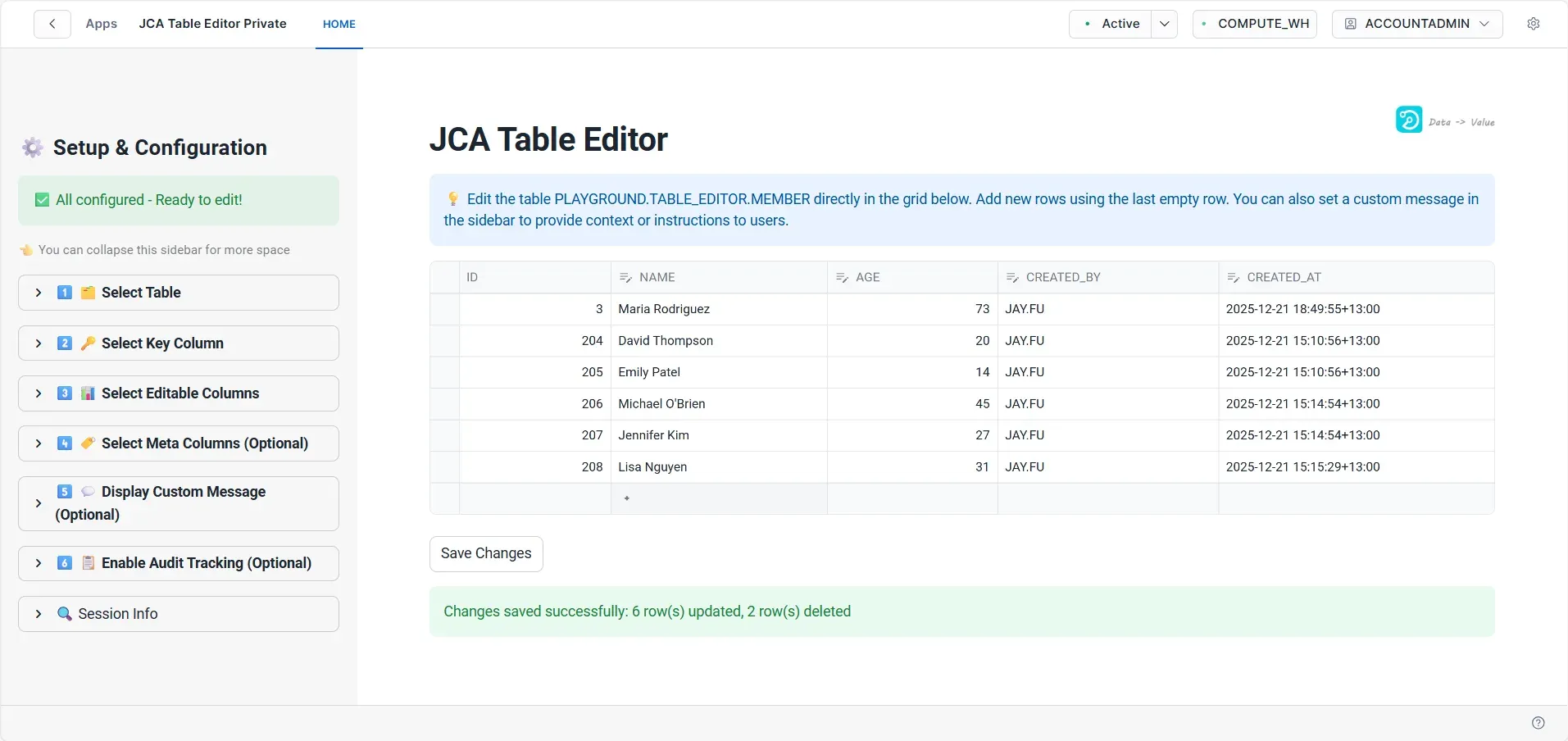
JCA Table Editor is a Snowflake Native App available through Snowflake Marketplace that provides an intuitive, user-friendly interface for editing Snowflake tables directly within your Snowflake environment. This powerful tool eliminates the need for complex SQL queries and provides a spreadsheet-like interface for data editing.
Use Cases
- Quick data corrections and updates
- Manual data entry into Snowflake tables
- Reference data management
- Configuration table updates
- Data quality remediation
- Intuitive Interface: Edit tables with a familiar spreadsheet-like interface
- Role-Based Access Control: Grant specific roles permission to edit specific tables
- Data Validation: Built-in validation ensures data integrity
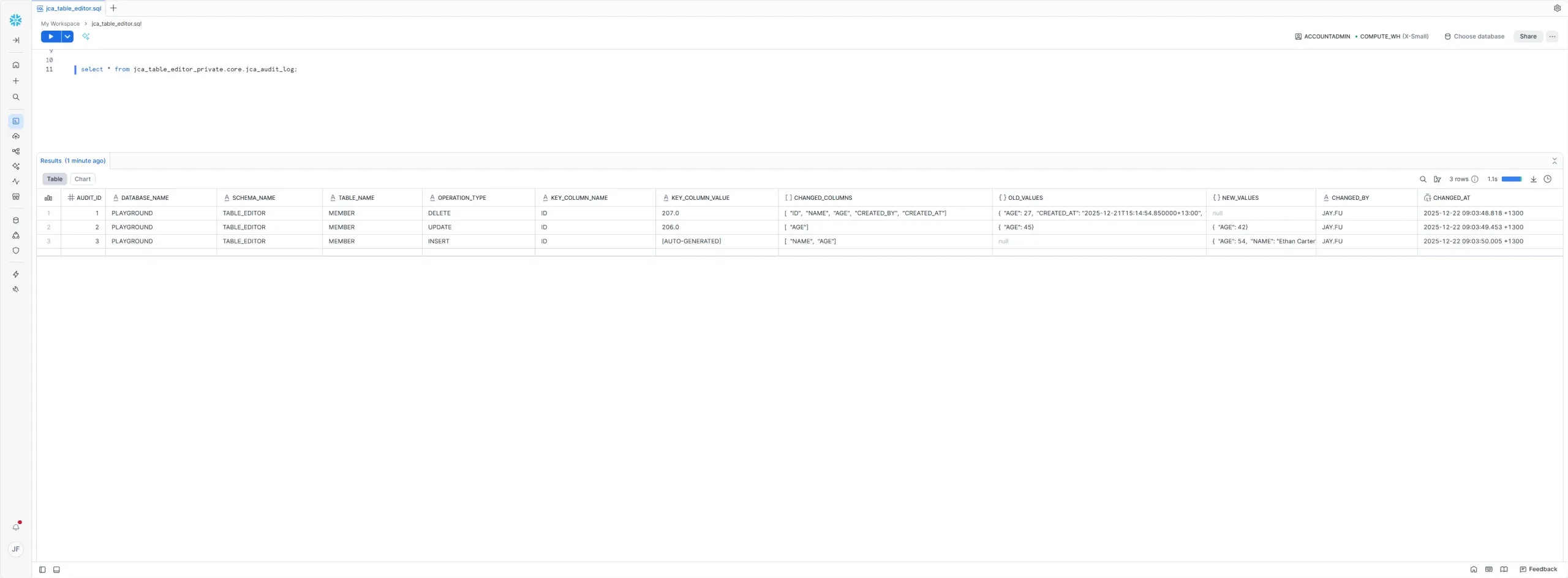
- Audit Trail: Track all changes made to your tables
- Multi-User Support: Multiple users can work simultaneously
- Secure: Leverage Snowflake's native security features
Before installing JCA Table Editor, ensure you have:
Snowflake Requirements
- Snowflake Account: Active Snowflake account with appropriate privileges
- Role Permissions: ACCOUNTADMIN or role with privileges to install Native Apps
- Database Access: Access to the databases and schemas containing tables you want to edit
Table Requirements
- Primary Key: Tables must have a primary key defined
- Supported Data Types: VARCHAR, NUMBER, DATE, TIMESTAMP, BOOLEAN
- Permissions: SELECT, INSERT, UPDATE, DELETE privileges on target tables
User Requirements
- Basic SQL Knowledge: Understanding of database, schema, and table concepts
- Snowflake Access: Snowsight UI access for app management
Get started with JCA Table Editor in 5 minutes:
- Install from Marketplace Navigate to Snowflake Marketplace Search "JCA Table Editor" Click "Get"
- Grant Table Access In the app: Settings Permissions Grant access to tables you want to edit
- Configure Roles Assign JCA_ADMIN role to administrators and JCA_USER role to editors (see Security & Permissions)
- Configure Table Settings In the Configuration tab, set key columns, editable columns, and optional audit tracking for each table
- Start Editing Open the app Select database/schema/table Begin editing data
For detailed configuration, see Setup & Installation section below.
Installation Steps
- Access Snowflake Marketplace Log into Snowsight Navigate to "Data Products" "Marketplace"
- Find JCA Table Editor Search for "JCA Table Editor" in the marketplace search bar
- Install Application Click "Get" Review privileges Click "Get" to install
- Configure Application Open the installed app Navigate to Settings Configure table access
Initial Configuration
- Grant App Permissions In Settings Permissions, grant the app access to specific consumer tables
- Open Configuration Tab Navigate to the Configuration tab to set up table editing rules
- Define Key Columns Select the primary key column(s) for the table - required for tracking row updates
- Select Editable Columns Choose which columns users can edit (some columns can be set as read-only)
- Enable Audit Tracking (Optional) Enable audit logging to track all changes with timestamp and user information
- Set Custom Messages (Optional) Configure user-facing messages and instructions for the table
Table Requirements
- Primary Key Required: Tables must have a primary key defined for editing
- Supported Data Types: Most common Snowflake data types are supported (VARCHAR, NUMBER, DATE, TIMESTAMP, BOOLEAN)
- Table Size: Best performance with tables under 1 million rows for editing
Performance Considerations
- Large Tables: Editing very large tables may impact performance
- Concurrent Access: Multiple simultaneous editors may experience slight delays
- Network Latency: Performance depends on network connection to Snowflake
Security Considerations
- Role Permissions: Users must have appropriate Snowflake role permissions
- Data Sensitivity: Consider data classification before granting edit access
- Audit Logging: All changes are logged but not automatically reversed
User Interface
To begin editing a table, you need to select which table you want to work with:
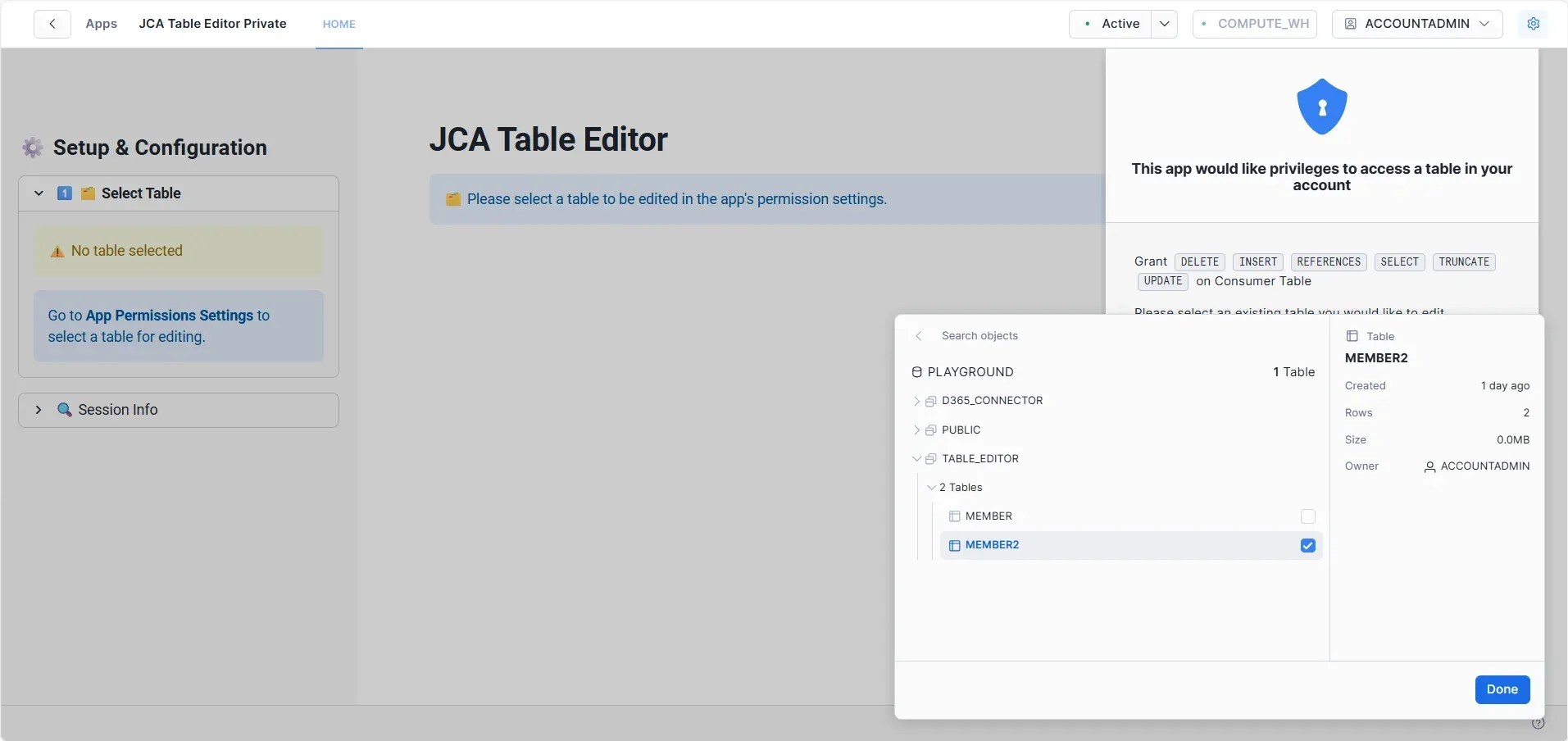
- Navigate to the Table Selection Screen Open the JCA Table Editor application in Snowflake
- Choose Database and Schema Select the database and schema containing the table you want to edit
- Select the Table Choose from the list of available tables.
- Load the Table Click "Done" to confirm table selection.
To switch to a different table for editing, you need to manage which tables the app has permission to access through the Permissions interface:
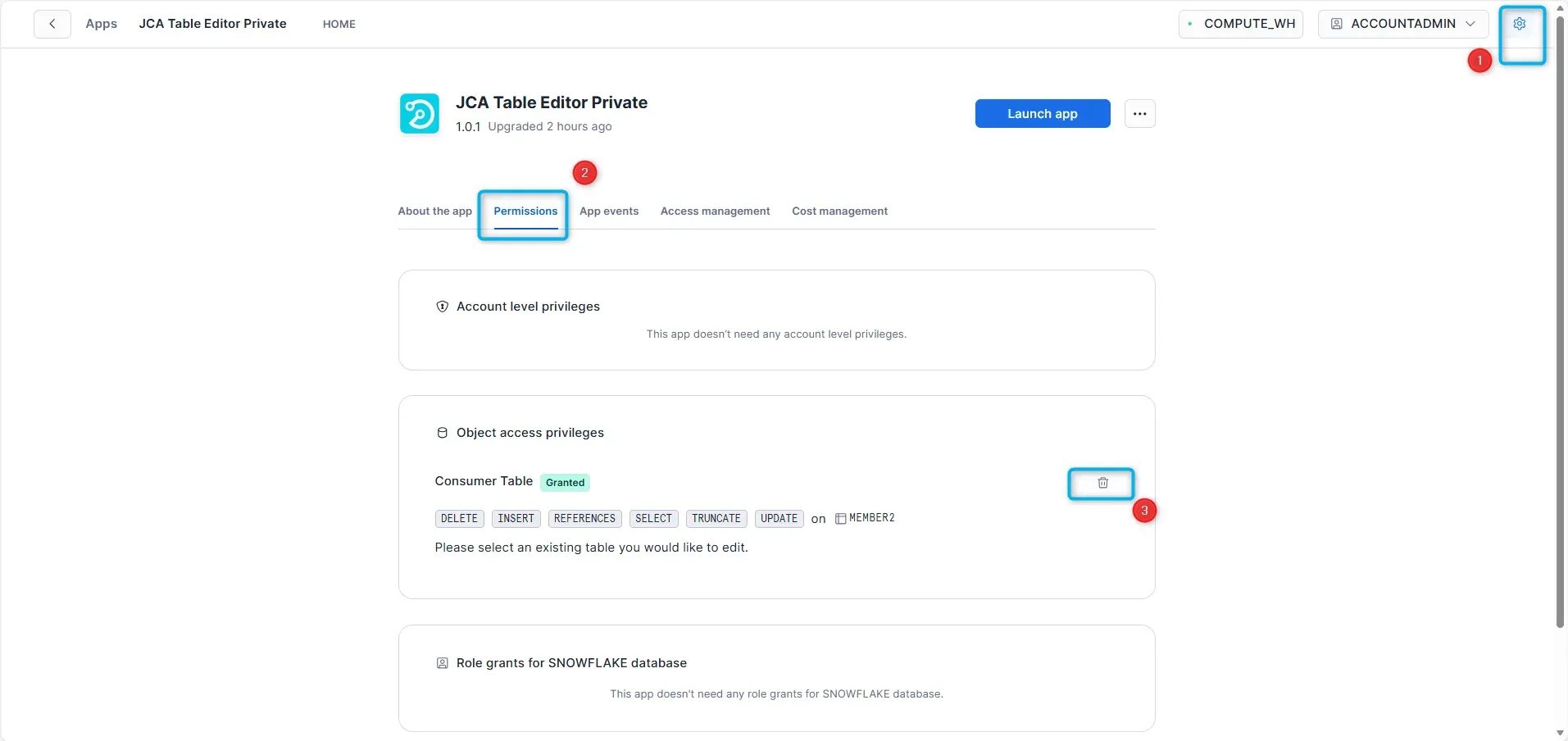
- Save Current Work Ensure all changes to the current table are saved before switching
- Open App Settings Click the settings icon in the top right and navigate to the "Permissions" tab
- Revoke Access to Current Table Under "Consumer Table", locate the currently granted table (e.g., "MEMBER2") and click the revoke/delete button to remove app access
- Grant Access to New Table Click the grant button next to "Consumer Table" and select the different table you want to edit from your Snowflake account
- Return to Editor Navigate back to the table editor - You will need to reconfigure the editor for the new table, e.g. select key column etc...
Note: The app can only edit tables that have been explicitly granted through this permissions interface. To work with a different table, you must revoke access from the current table and grant it to the new one. This ensures you maintain control over which data the app can access at any given time.
- Edit: click into any cell to edit the data.
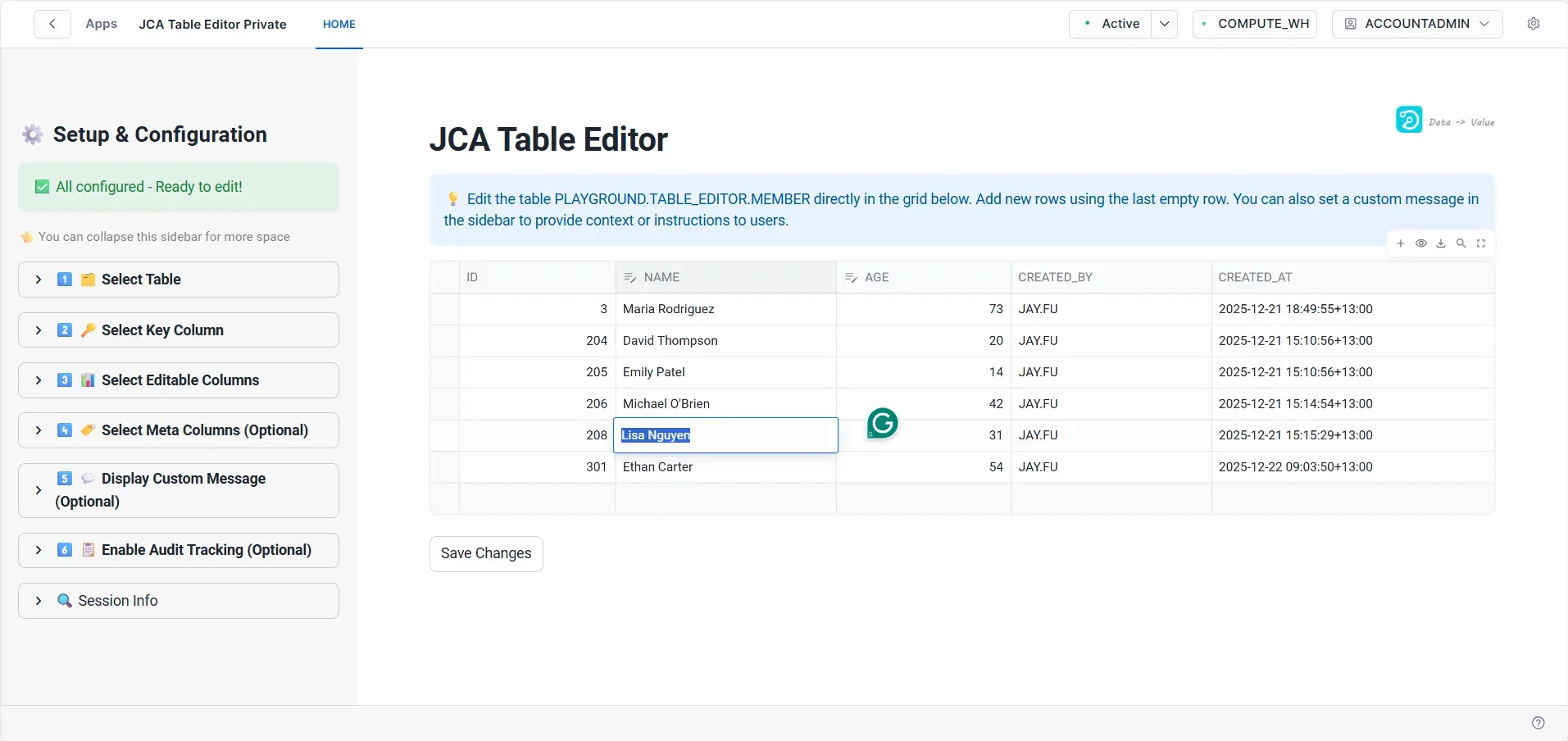
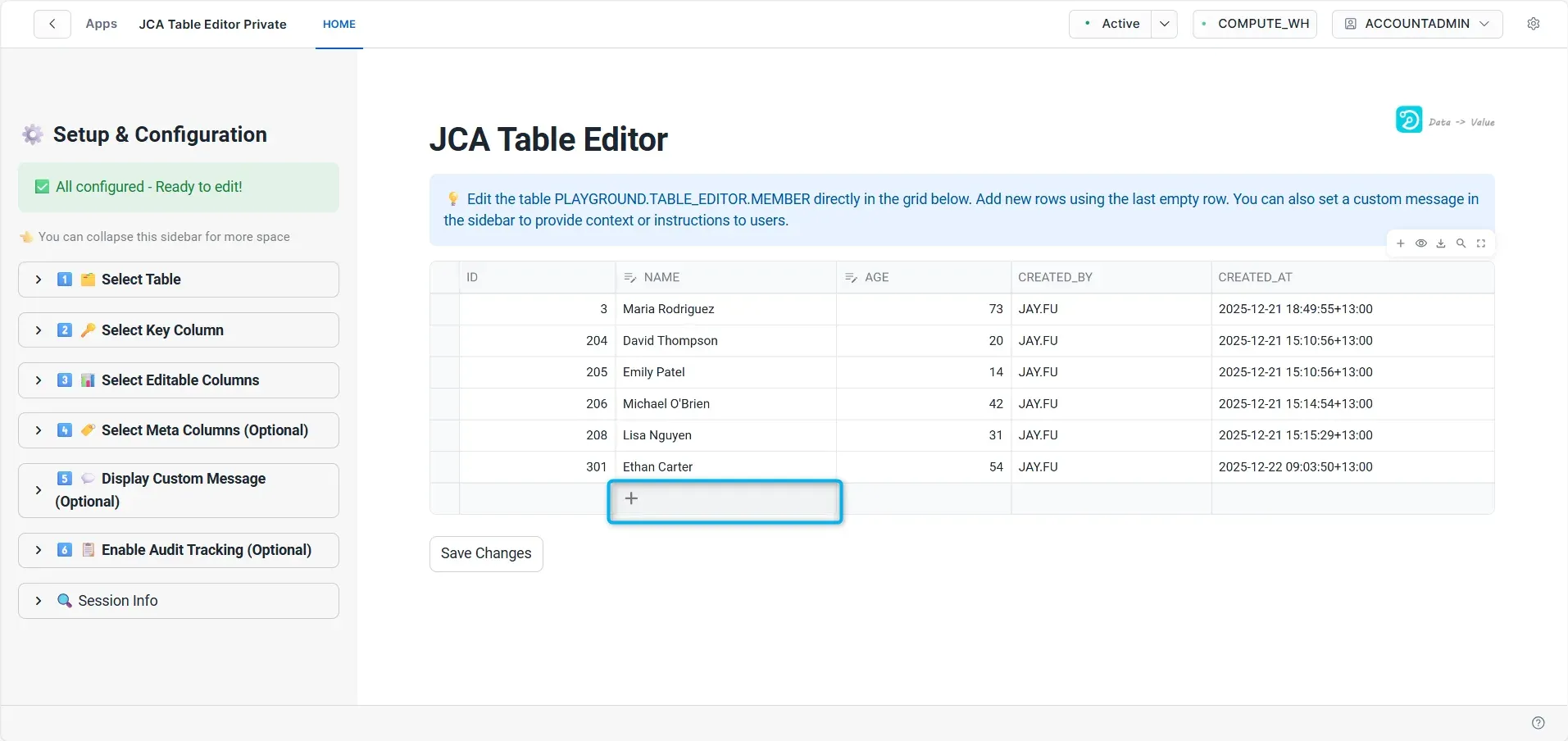
- Add: click the + sign on the last row.
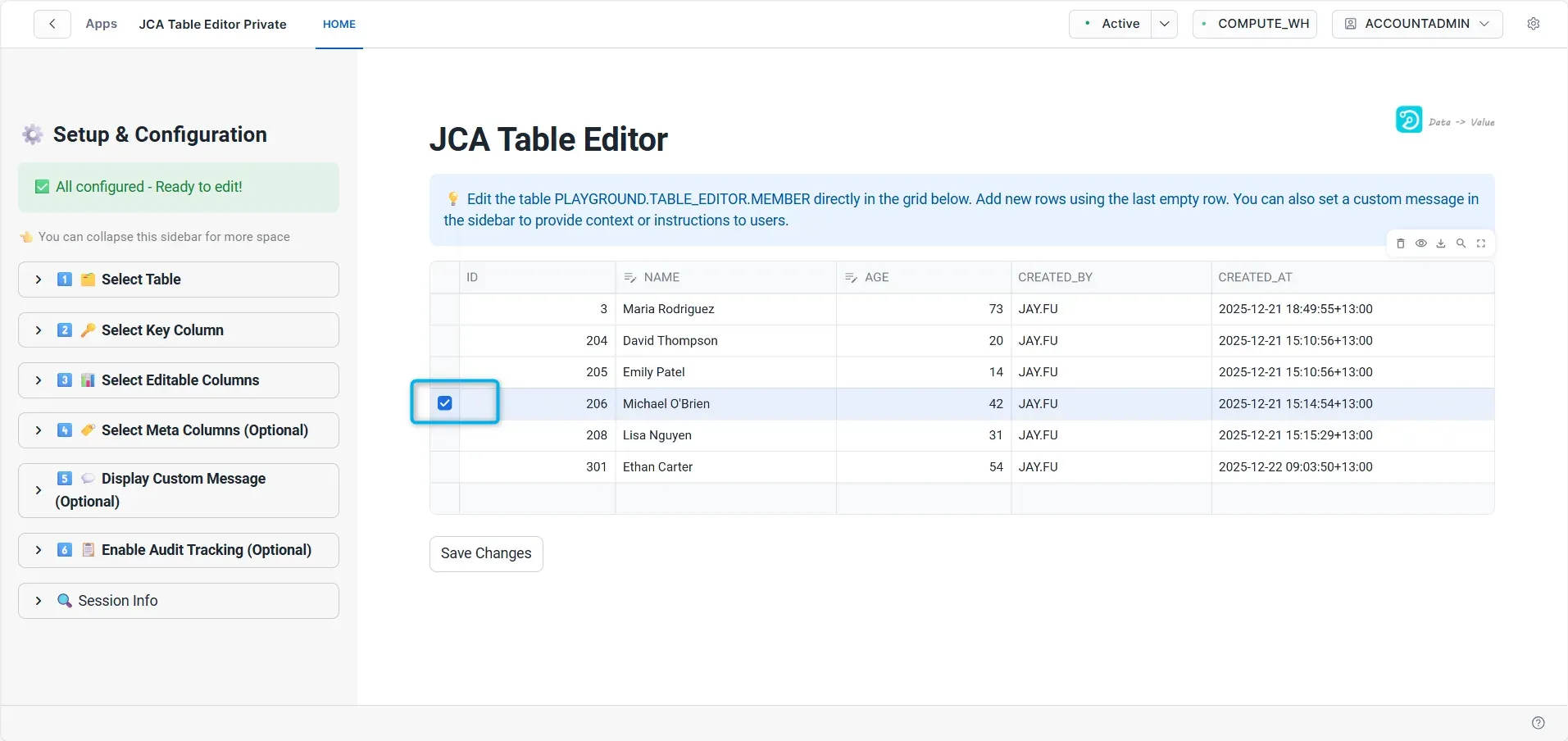
- Delete: select the rows to be deleted, and press the "Delete" key on the keyboard.
- You can make multiple changes on the grid and click the "Save Change" button to save all changes.
Security & Permissions
The JCA Table Editor provides two distinct roles with different permission levels. Proper role assignment ensures users have appropriate access while maintaining security and control.
Available Roles
JCA_ADMIN
- Full administrative access to configure and manage the application
- Configure table references and permissions
- Set key columns, editable columns, and meta columns
- Enable/disable audit tracking
- Set custom user messages
- View and delete audit log records
- All data editing capabilities (insert, update, delete)
JCA_USER
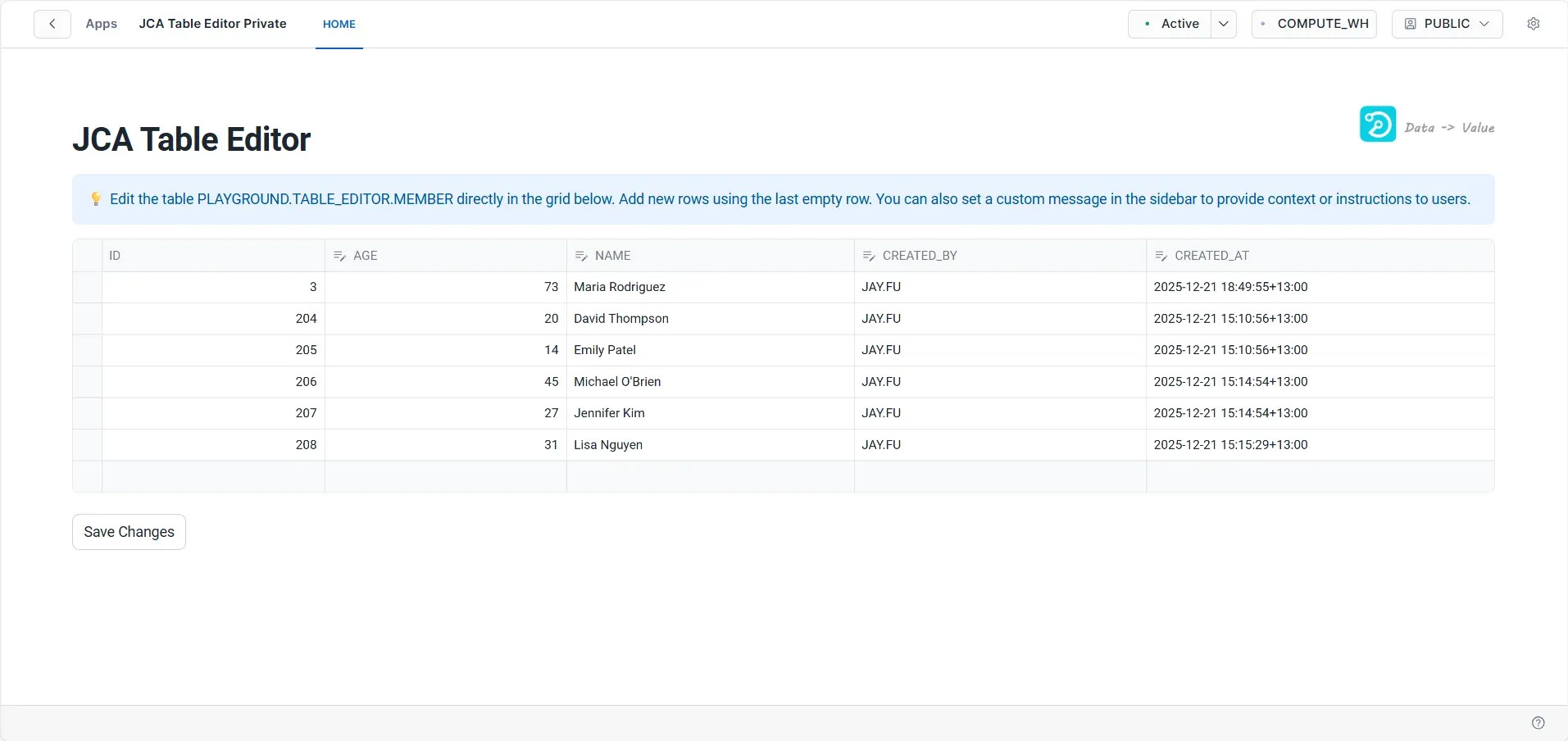
- Data editing access only
- View and edit data in configured tables
- Insert, update, and delete records
- Cannot view audit logs or modify application settings
- No access to configuration settings
Assigning Roles to Users
Option 1: Through Snowsight UI
- Go to Settings
- Navigate to the Access management tab
- Click the Add button
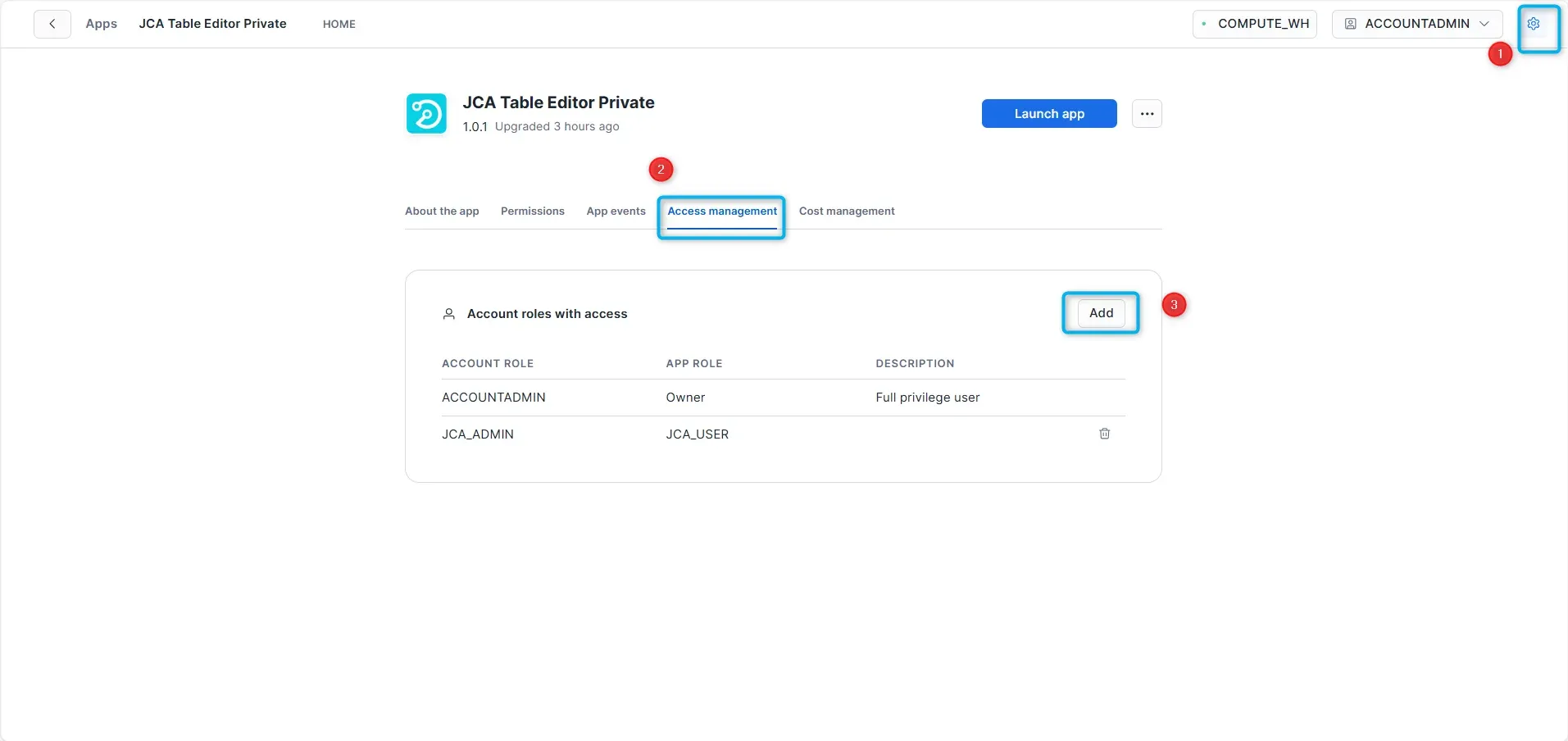
- In the dialog:
- Account roles: Select the Snowflake role to grant access to
- After the Account role is added, select the app role from the drop-down.
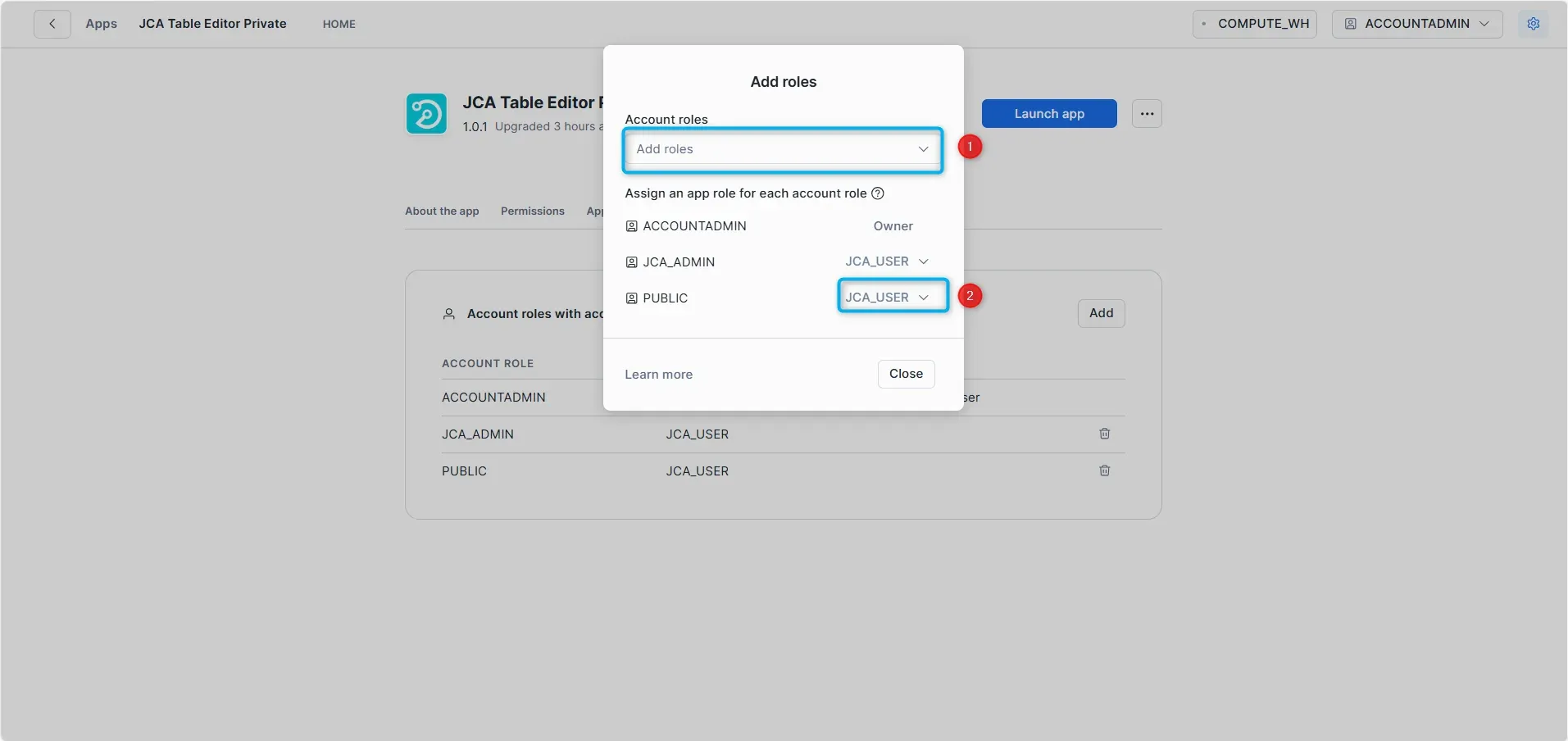
- Click Close to confirm
Option 2: Using SQL Commands
Grant admin role to a Snowflake role:
GRANT APPLICATION ROLE jca_table_editor.jca_admin
TO ROLE your_snowflake_role;
Grant user role to a Snowflake role:
GRANT APPLICATION ROLE jca_table_editor.jca_user
TO ROLE your_snowflake_role;
Example: Data Team Setup
-- Grant admin access to data engineering team
GRANT APPLICATION ROLE jca_table_editor.jca_admin TO ROLE data_engineering;

-- Grant user access to data analysts
GRANT APPLICATION ROLE jca_table_editor.jca_user TO ROLE data_analyst;
Best Practices
- Principle of Least Privilege: Grant JCA_USER role by default; reserve JCA_ADMIN for designated administrators
- Use Snowflake Roles: Create Snowflake roles for departments or teams and assign application roles to these groups
- Regular Reviews: Periodically review and audit role assignments
Troubleshooting & FAQ
Symptom
Tables are not appearing in the table selection dropdown.
Possible Causes & Solutions
- App Not Granted Access: The app must be granted access to tables through Settings Permissions Consumer Table
- Not Configured: After granting permissions, admin must configure the table (key columns, editable columns) in the Configuration tab
- Wrong Role: Ensure you've been granted JCA_USER or JCA_ADMIN application role for the app
Symptom
Error when attempting to save edits to table data.
Solutions
- Check Permissions: Verify your role has INSERT, UPDATE, DELETE privileges on the table
- Data Validation: Ensure edited values match the column data type (e.g., numbers in NUMBER columns)
- Primary Key: Confirm primary key columns are not being modified or set to NULL
- Column Configuration: Check that the column is configured as editable by the admin
Symptom
Unable to assign roles or access denied errors.
Solutions
- Admin Role Required: Only users with ACCOUNTADMIN or app owner privileges can assign roles
- Verify Role Grant: Use
SHOW GRANTS OF APPLICATION ROLE jca_table_editor.jca_admin;to verify grants - UI vs SQL: Try using SQL commands if UI method fails, or vice versa
Can I edit multiple tables at once?
No, you need to select and save changes to one table at a time. However, you can quickly switch between tables using the "Change Table" feature.
Are my changes tracked?
Yes, if the admin has enabled audit logging, all changes (inserts, updates, deletes) are tracked with timestamp and user information.
Can I undo changes?
Changes are committed immediately to Snowflake. There's no built-in undo feature, but you can manually revert changes or use Snowflake's Time Travel feature.
What's the difference between JCA_ADMIN and JCA_USER?
JCA_ADMIN can configure the app (which tables are editable, column settings, etc.) and view audit logs. JCA_USER can only edit data in configured tables.
Can multiple users edit the same table simultaneously?
Yes, but be aware that concurrent edits to the same rows may result in one user overwriting another's changes. Last save wins.
Back to TopNext Steps
Get Started
- Installation Guidance: Contact JayConsulting for step-by-step installation assistance
- Licensing & Pricing: Inquire about flexible licensing options and volume pricing
- Custom Configuration: Professional services for complex table configurations
Additional Resources
Enterprise Support
- Priority technical support with fast response times
- Custom feature development
Ready to simplify your Snowflake table editing?
Contact us to learn more about JCA Table Editor and how it can streamline your data management.
Schedule a Consultation