

In this second part of our series on Dynamics 365 Finance and Operations (D365FO) reporting, we shift our focus to Financial Reporting.
3. Financial Reporting
| Feature | Description |
|---|---|
| Purpose | Enables financial and business professionals to create, maintain, deploy, and view high-level financial statements (e.g., Balance Sheets, P&L). |
| Development Effort | Low |
| Skill Set | Financial Report Designer skills and a strong understanding of the organisation’s financial structure. |
Financial Reporting is a powerful out-of-the-box (OOTB) tool integrated directly into the D365FO application. It is specifically designed to empower financial users to design and generate reports ad hoc or on a predefined schedule without requiring deep technical coding skills.
D365FO comes with a comprehensive list of pre-defined financial reports. These serve as excellent templates that users can easily modify to suit their specific reporting periods, financial dimensions, and attributes.
Generating Financial Reports
Financial Reporting can be accessed from several key modules:
- General Ledger > Inquiries and reports
- Budgeting > Inquiries and reports > Basic budgeting
- Budgeting > Inquiries and reports > Budget planning
- Budgeting > Inquiries and reports > Budget control
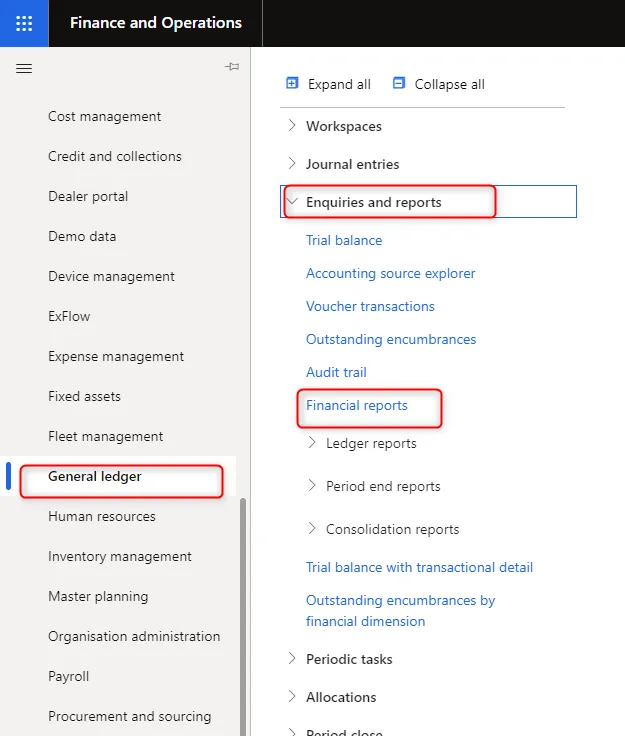
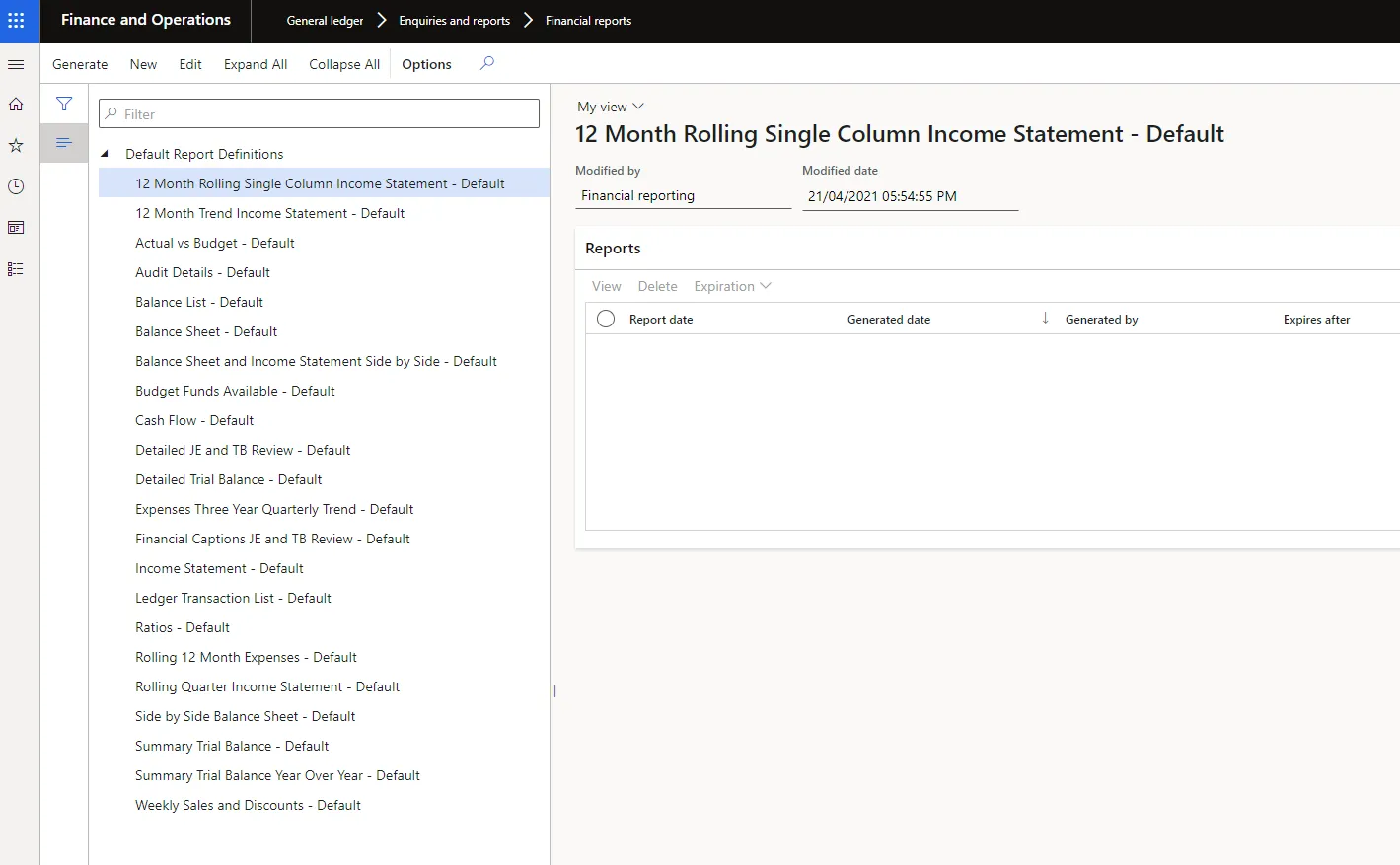
Upon opening the “Financial reports” form, you will see a list of available reports:
To run a report, simply select it from the list and click “Generate”. You will be prompted to select a “Report date” for the execution.
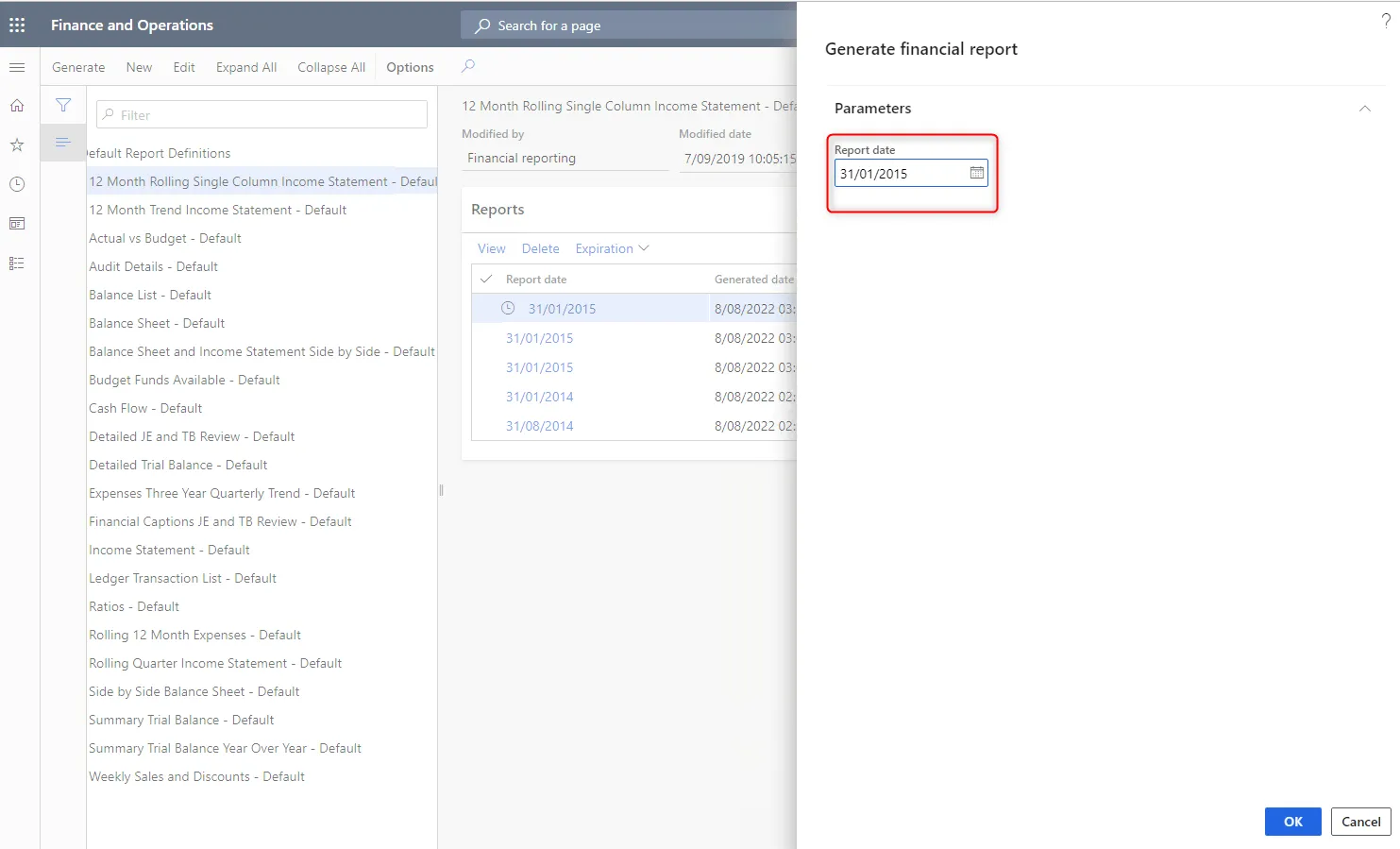
For example, generating the “12 Month Rolling Single Column Income Statement – Default” will process the data in the background and display the status on the form:

Once generated, clicking the “View” button displays the full report content:
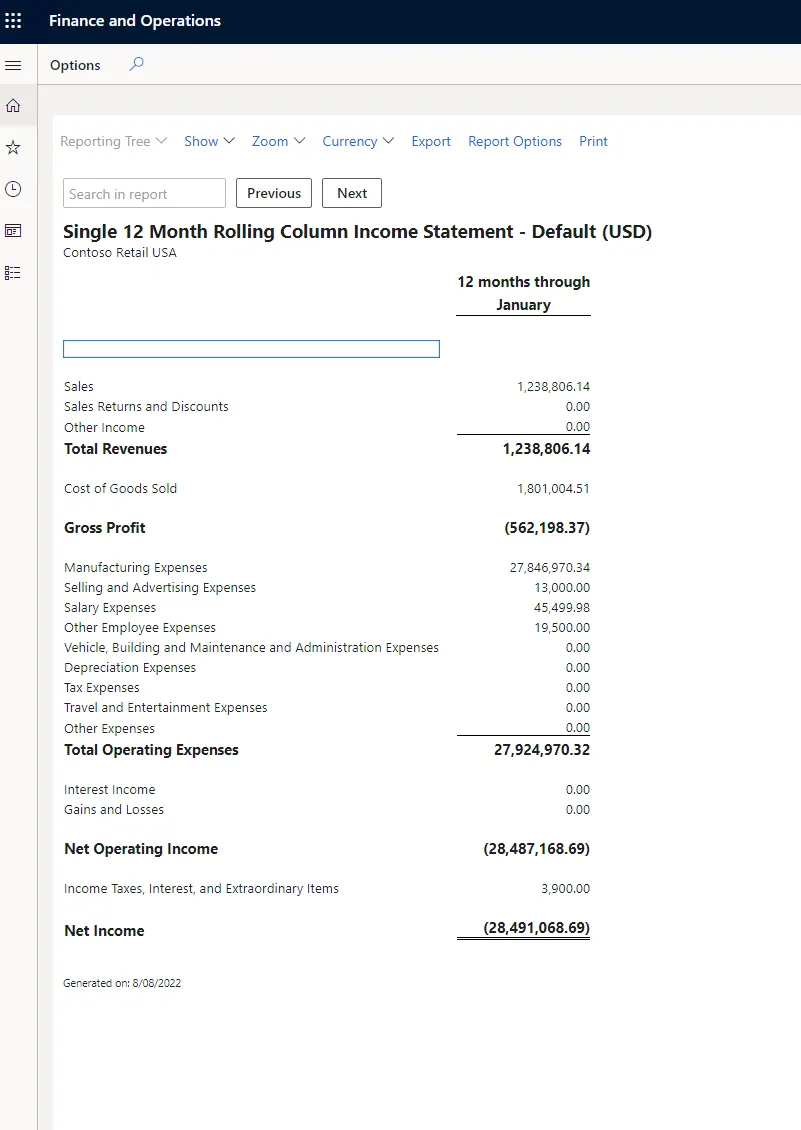
Users can further refine the view by clicking “Report Options” to filter by specific attributes or financial dimensions.
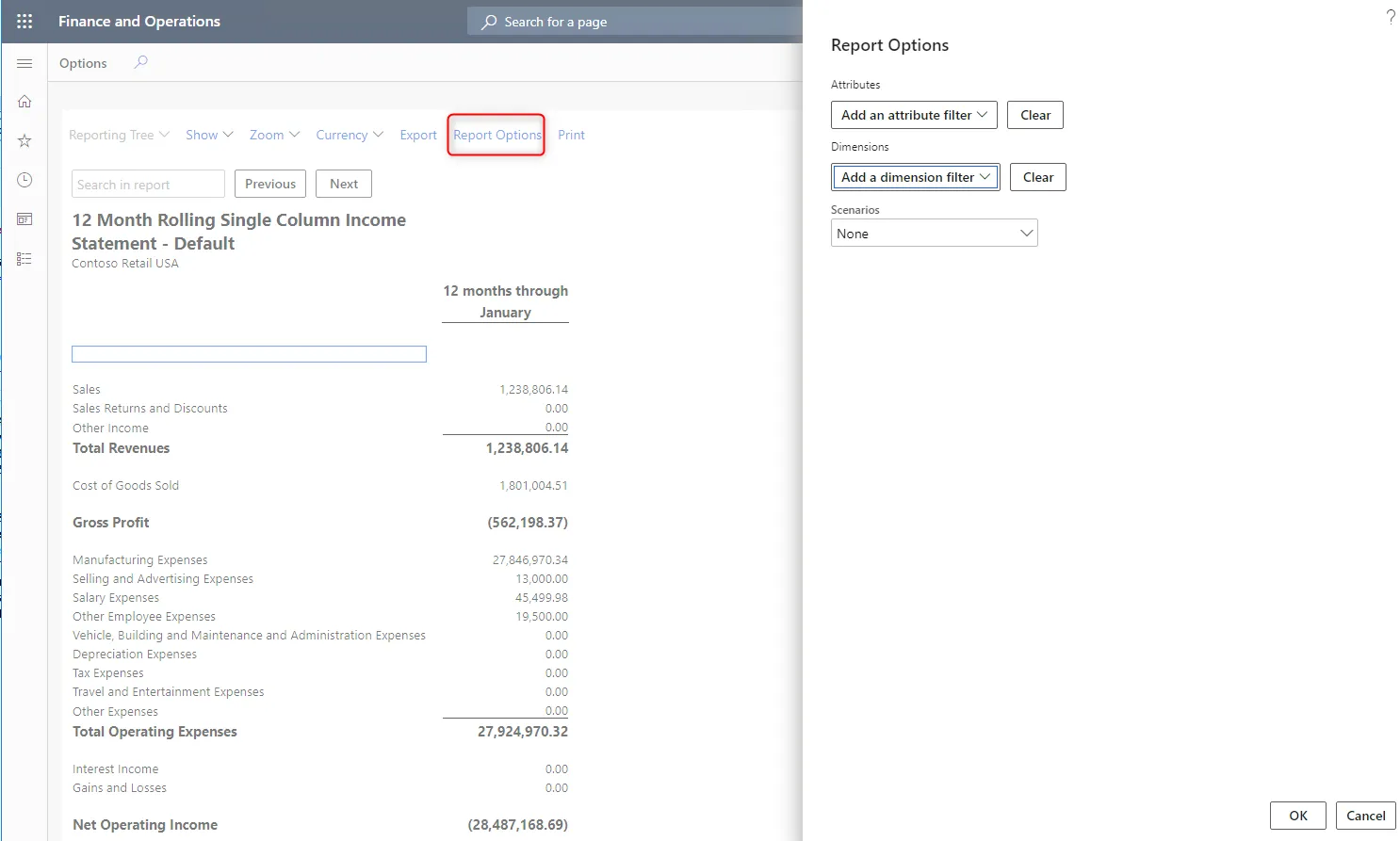
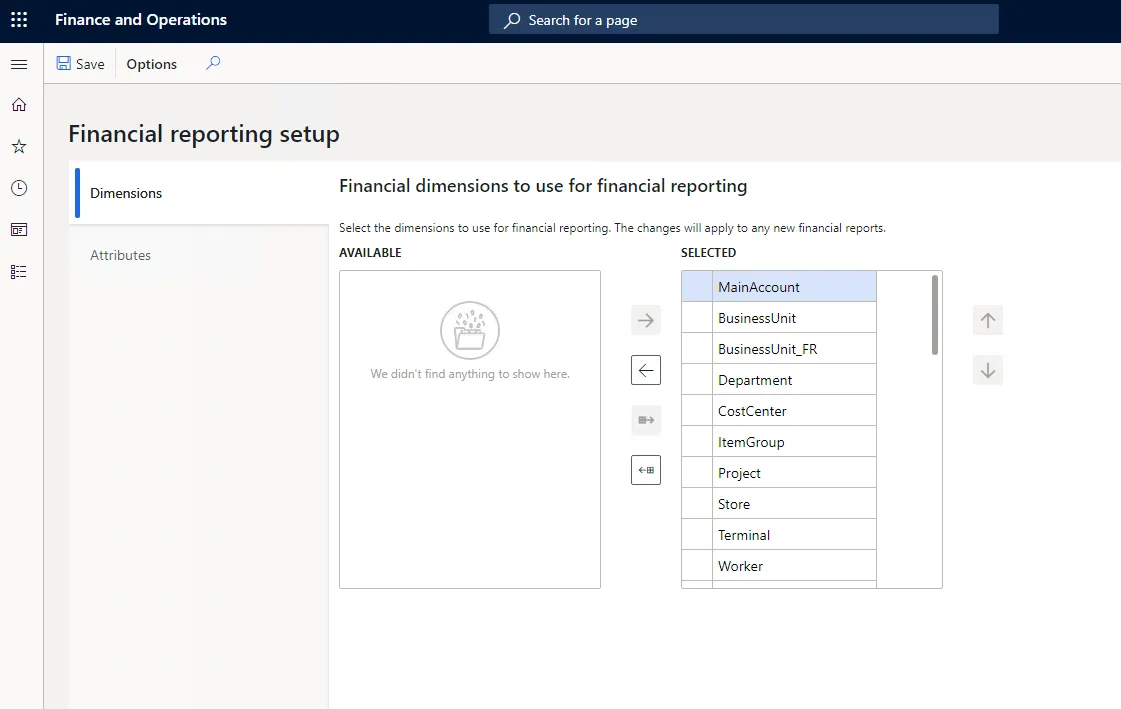
The available attributes and dimensions are configurable via General Ledger > Ledger setup > Financial reporting setup.
Design and Development: The Report Designer
To create or modify reports, click the “New” or “Edit” button to launch the Financial Report Designer (a standalone click-once application).
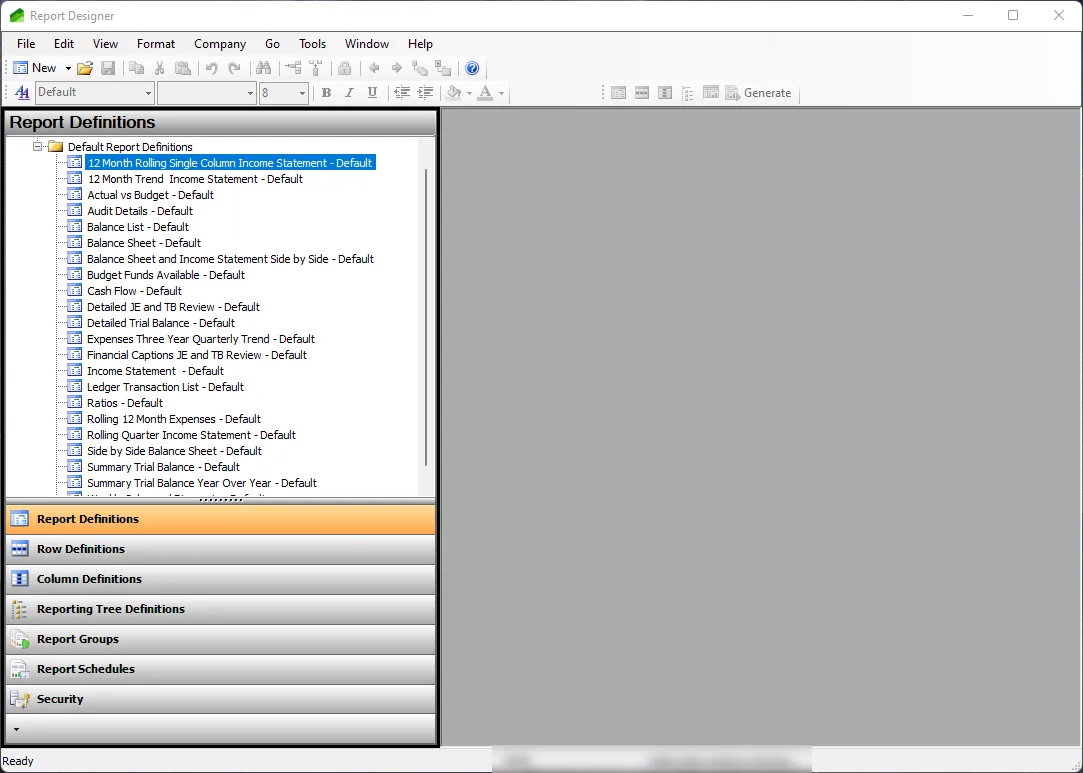
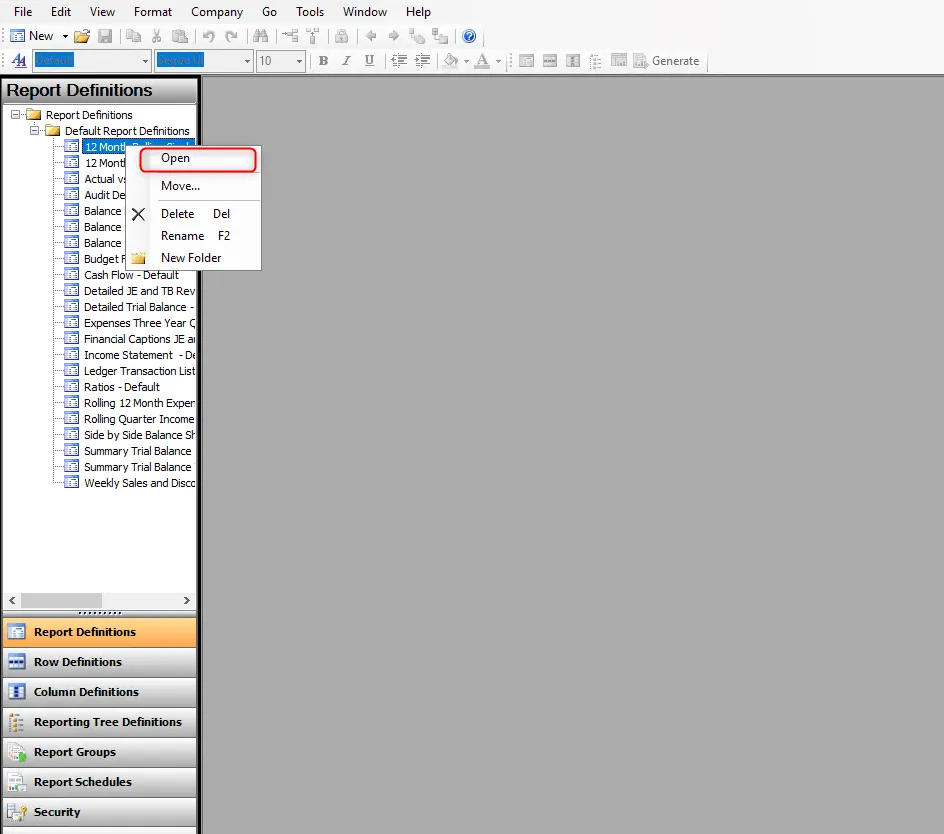
Within the Report Designer, you can open report definitions to modify their structure.
The power of the Report Designer lies in its three core Building Blocks:
- Row Definition: Specifies the individual rows of the report (e.g., specific accounts or account categories).
- Column Definition: Defines the columns, such as actuals, budgets, or variance calculations across different periods.
- Reporting Tree: Creates a hierarchical structure to filter report data by business units, departments, or other legal entities.
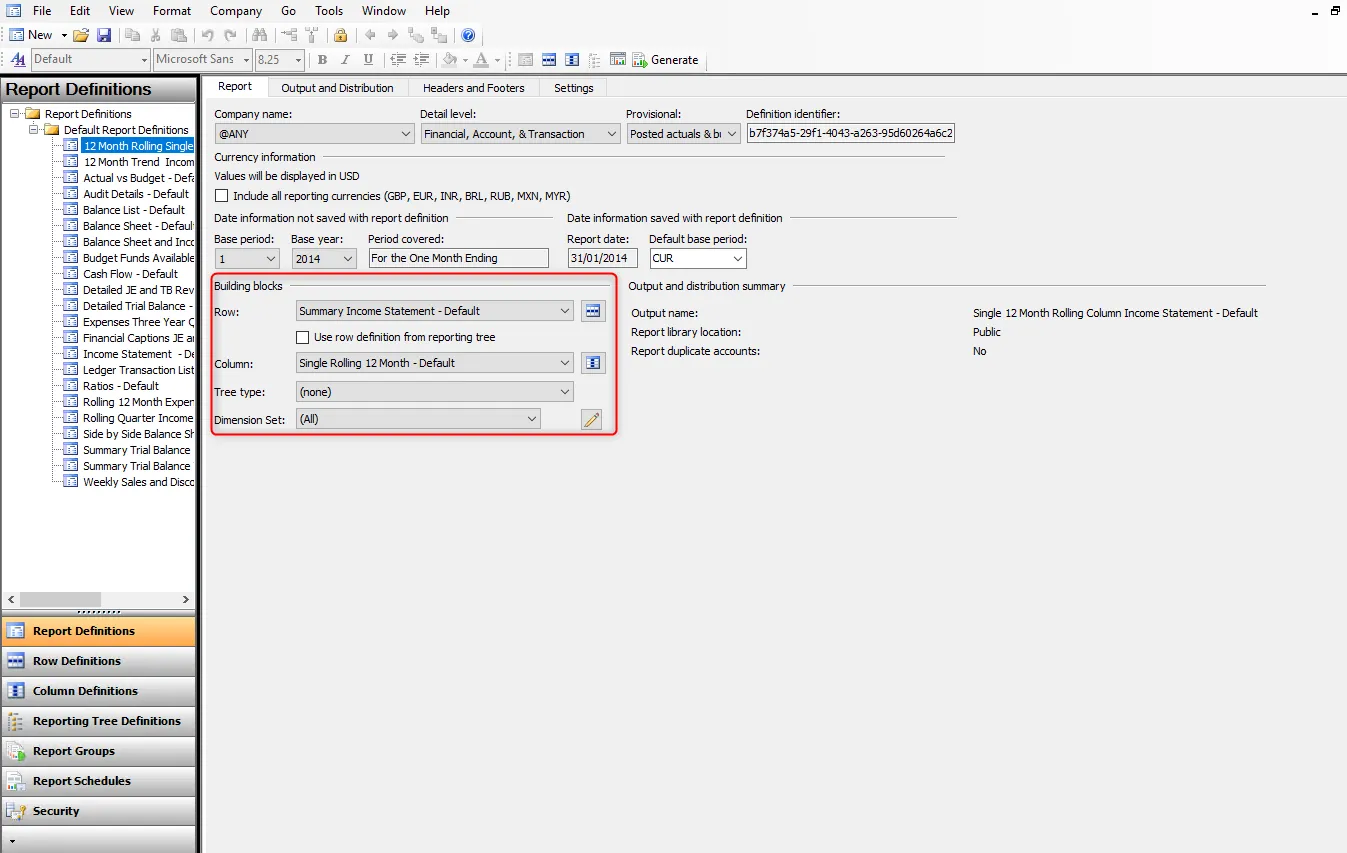
By combining these blocks, financial teams can quickly build complex, multi-dimensional reports that provide deep insights into the organisation’s financial health.
Stay tuned for Part 3, where we will explore Electronic Reporting.