

For a long time, I’ve been looking for the best way to experiment with SQL Server 2019 on my local laptop without cluttering my host machine. My goal was to keep my primary OS clean, reserved only for client applications like Visual Studio Code and SQL Server Management Studio (SSMS).
After several days of experimentation, I found that the most effective solution is to use Ubuntu on WSL 2, install Docker within that Linux environment, and run the SQL Server 2019 container from there. While there were a few hurdles along the way, the final result is a robust and isolated development environment.
In this post, I’ll walk you through the different options I explored and the exact steps to set up this environment yourself.
The Journey: What I Tried First
Before landing on the final solution, I explored several alternatives. My key requirements were:
- Isolation: Running SQL Server within a VM or Docker container, not directly on the host.
- Persistence: Ensuring database files are stored outside the container so they survive container restarts or deletions.
1. Linux VM via Hyper-V
My first attempt involved a full Linux VM running on Hyper-V. While it worked, it consumed significant disk space (both the VM image and the VHD file). Additionally, as someone not deeply familiar with Linux at the time, managing a full VM felt like overkill for just a database instance.
2. Docker Desktop with Linux Backend
Next, I tried Docker Desktop. It offers a great graphical interface for managing resources and containers. Connecting via SSMS from the host was seamless. However, I ran into a major roadblock with Docker Volumes. When mapping a volume to /var/opt/mssql/data to persist data, the container would fail to start due to permission errors on the volume folder.
3. Docker Desktop with WSL 2
Even after enabling the WSL 2 backend in Docker Desktop, the permission issues persisted. The docker-desktop-data distribution is not directly accessible, making it difficult to modify folder ownership—a requirement for SQL Server’s internal processes.
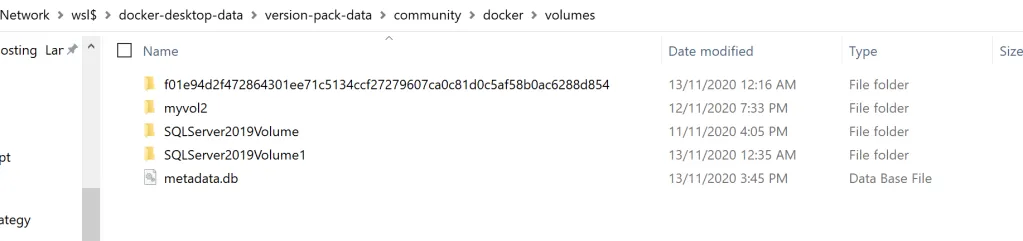
The Final Solution: Native Docker on WSL 2
The breakthrough came when I decided to bypass Docker Desktop’s abstraction and install Docker directly within a native WSL 2 Ubuntu distribution. This gives you full control over the Linux file system and permissions.
Step 1: Install Ubuntu on WSL 2
If you haven’t already, enable WSL 2 on Windows 10 or 11. Then, search for “Ubuntu” in the Microsoft Store and install it.
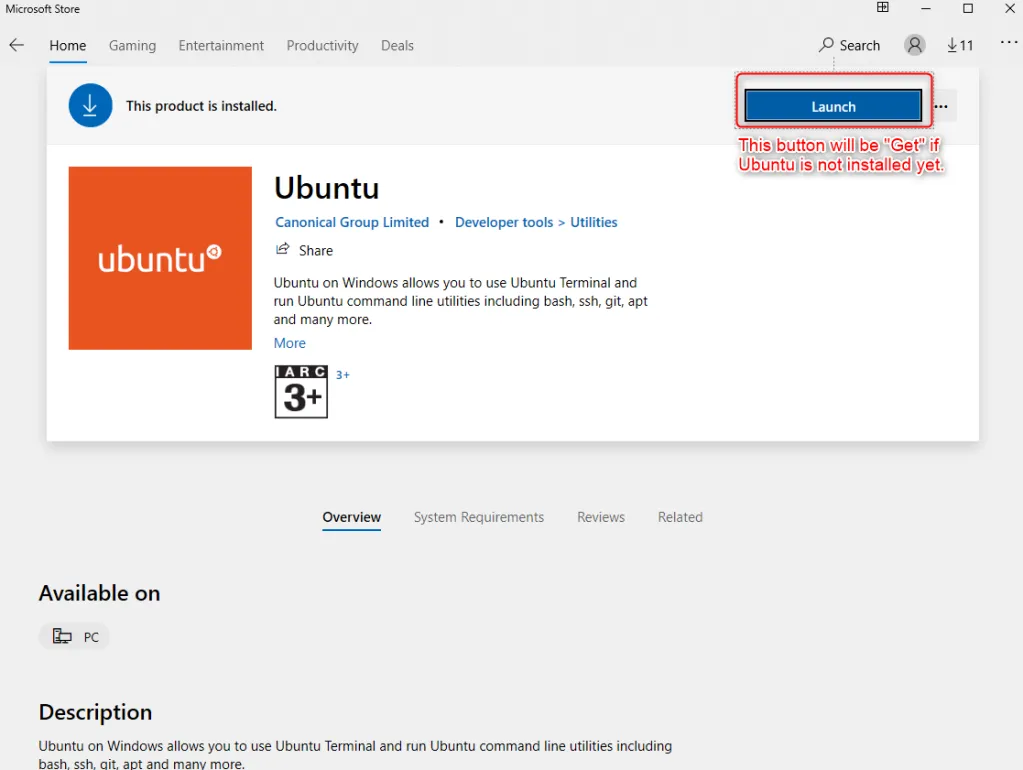
Once installed, launch the Ubuntu shell and complete the initial user setup.
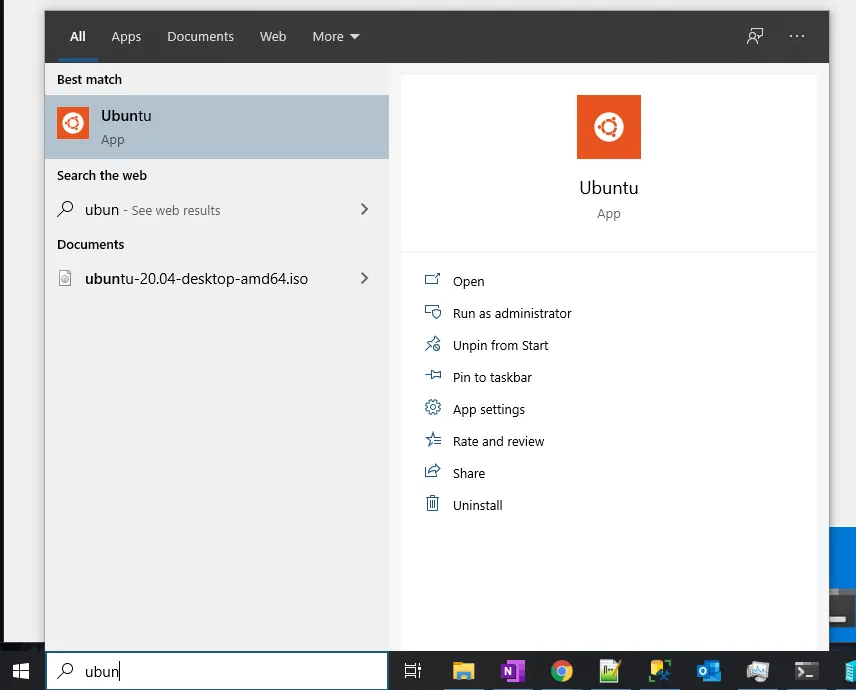
You can verify your version by running uname -a in the shell.

Step 2: Install Docker Engine in Ubuntu
Follow the official Docker documentation to install Docker Engine directly within your Ubuntu shell. To avoid using sudo for every command, I recommend adding your user to the docker group.
Step 3: Run the SQL Server 2019 Container
First, pull the official image from Microsoft:
docker pull mcr.microsoft.com/mssql/server:2019-latest
Then, start the container with a persistent volume:
docker run -e "ACCEPT_EULA=Y" -e 'SA_PASSWORD=YourStrong(!)Password' \
-p 1433:1433 -d --name "SQLServer2019" \
-v SQLServer2019Volume:/var/opt/mssql/data \
mcr.microsoft.com/mssql/server:2019-latest
Conclusion: A Better Way to Develop
With this setup (WSL 2 -> Docker -> SQL Server), I have a high-performance, isolated database instance that I can access via SSMS on my host machine using localhost.
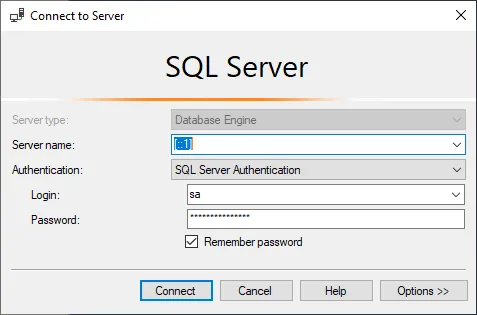
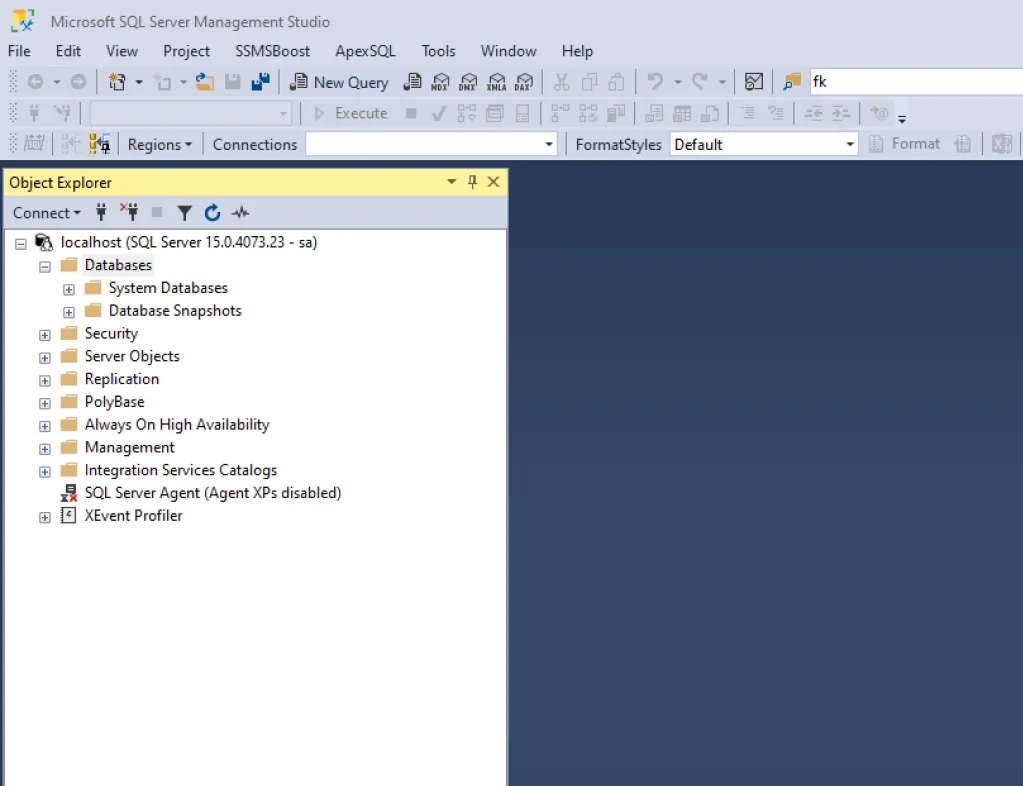
The experience is significantly better than a traditional Windows installation. Starting a new SQL Server instance takes seconds, and when I’m done with an experiment, I can simply stop the container or delete the volume without leaving any trace on my host system.
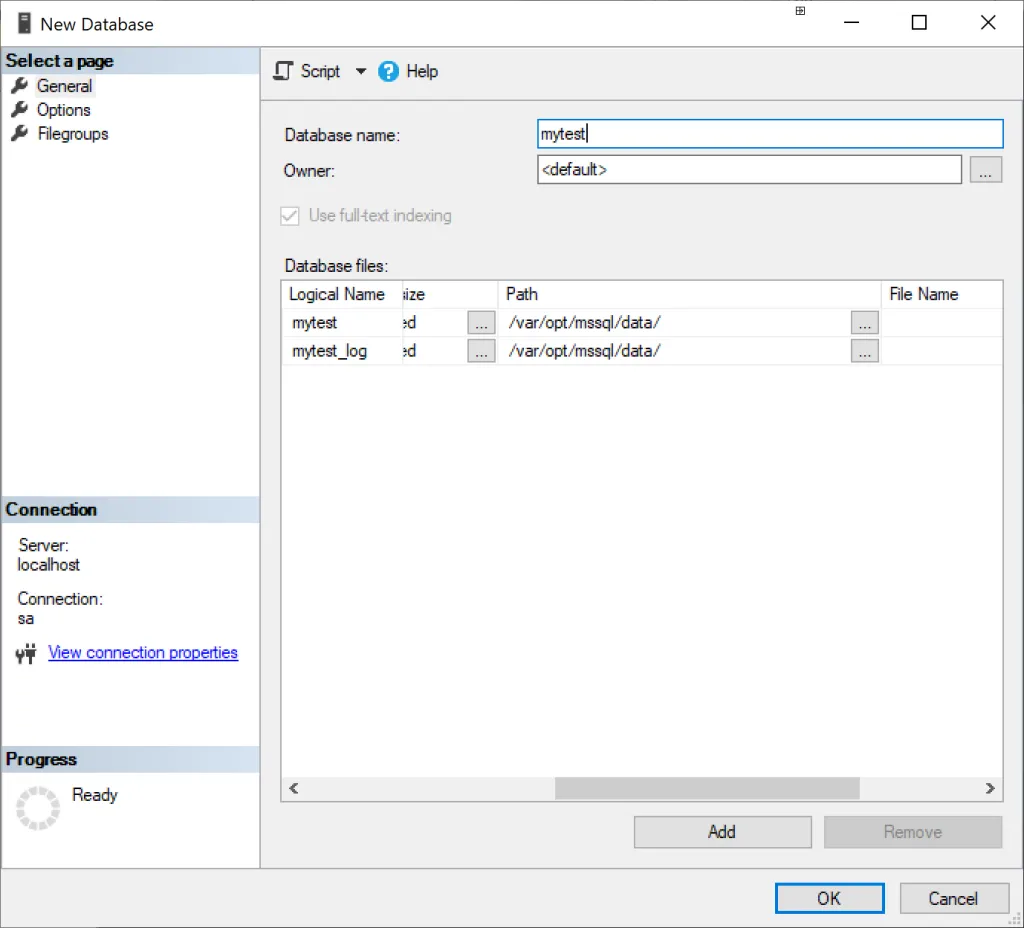
If you’re looking for a clean and efficient way to manage your local development databases, I highly recommend giving this WSL 2 and Docker approach a try.